Built for your industry

The POS that fits the way you work

Pick your industry and see what BuyLink does for you — from the restaurant floor to the ticket desk.
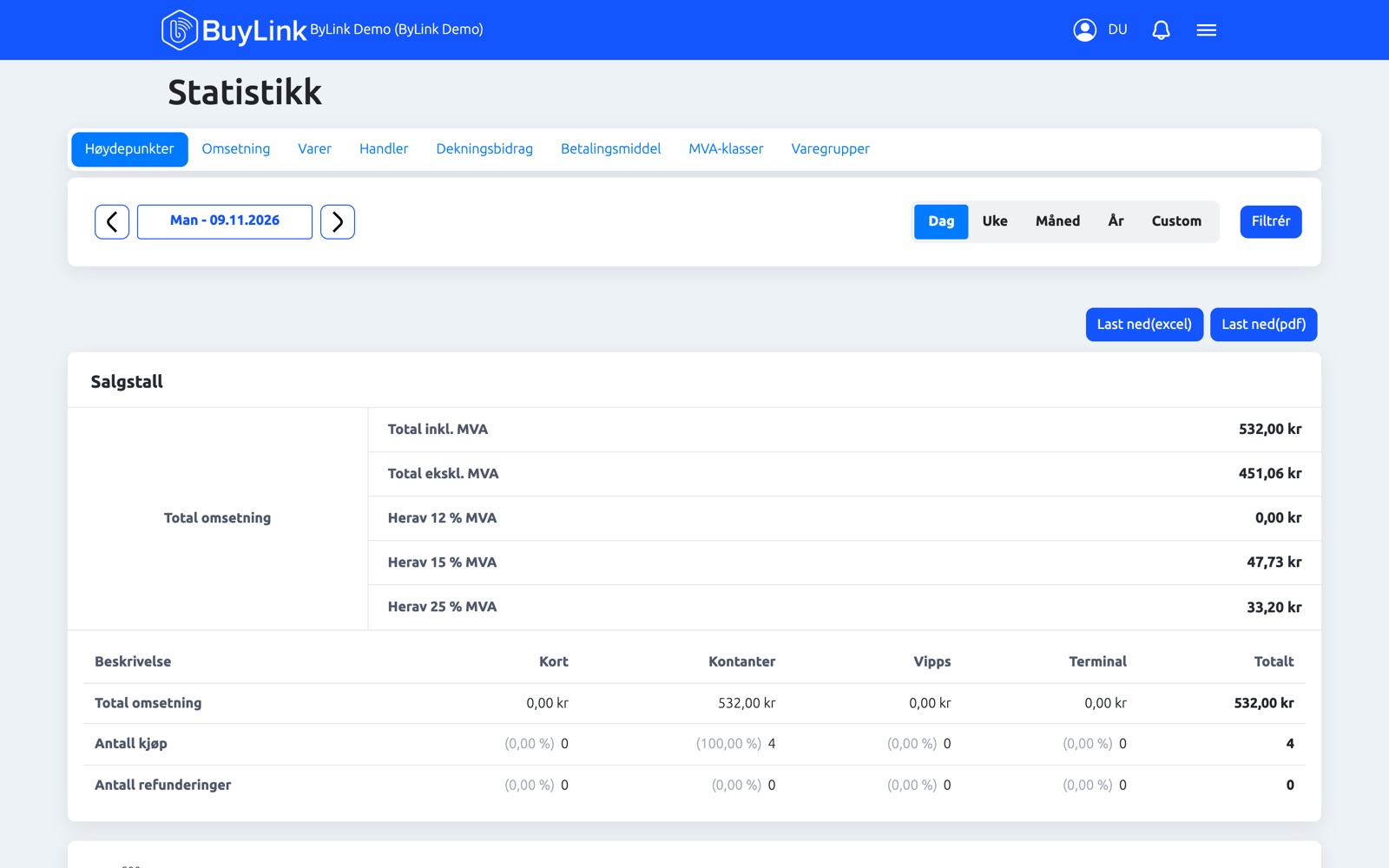
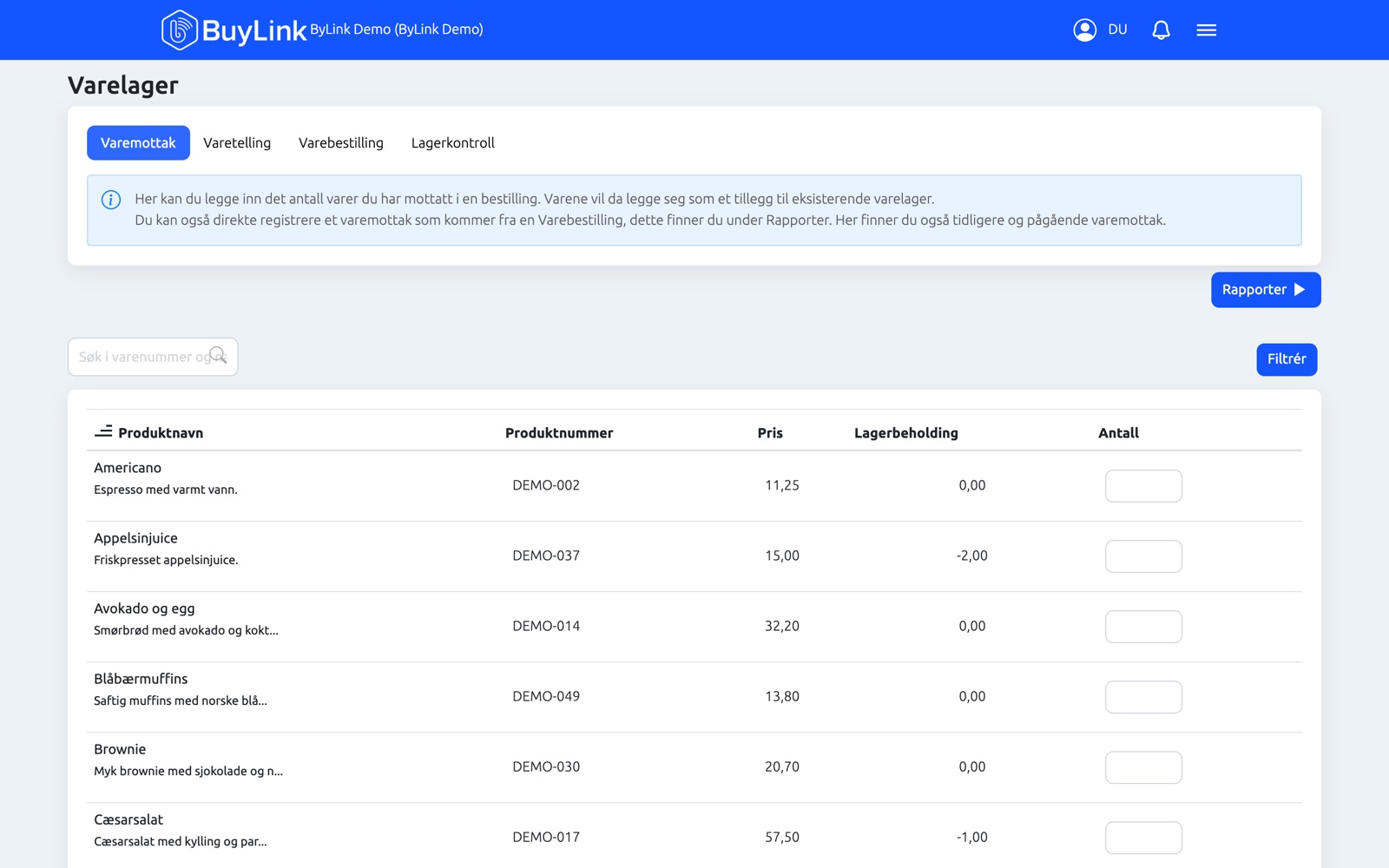
Back-office dashboard: today’s sales overview (web)
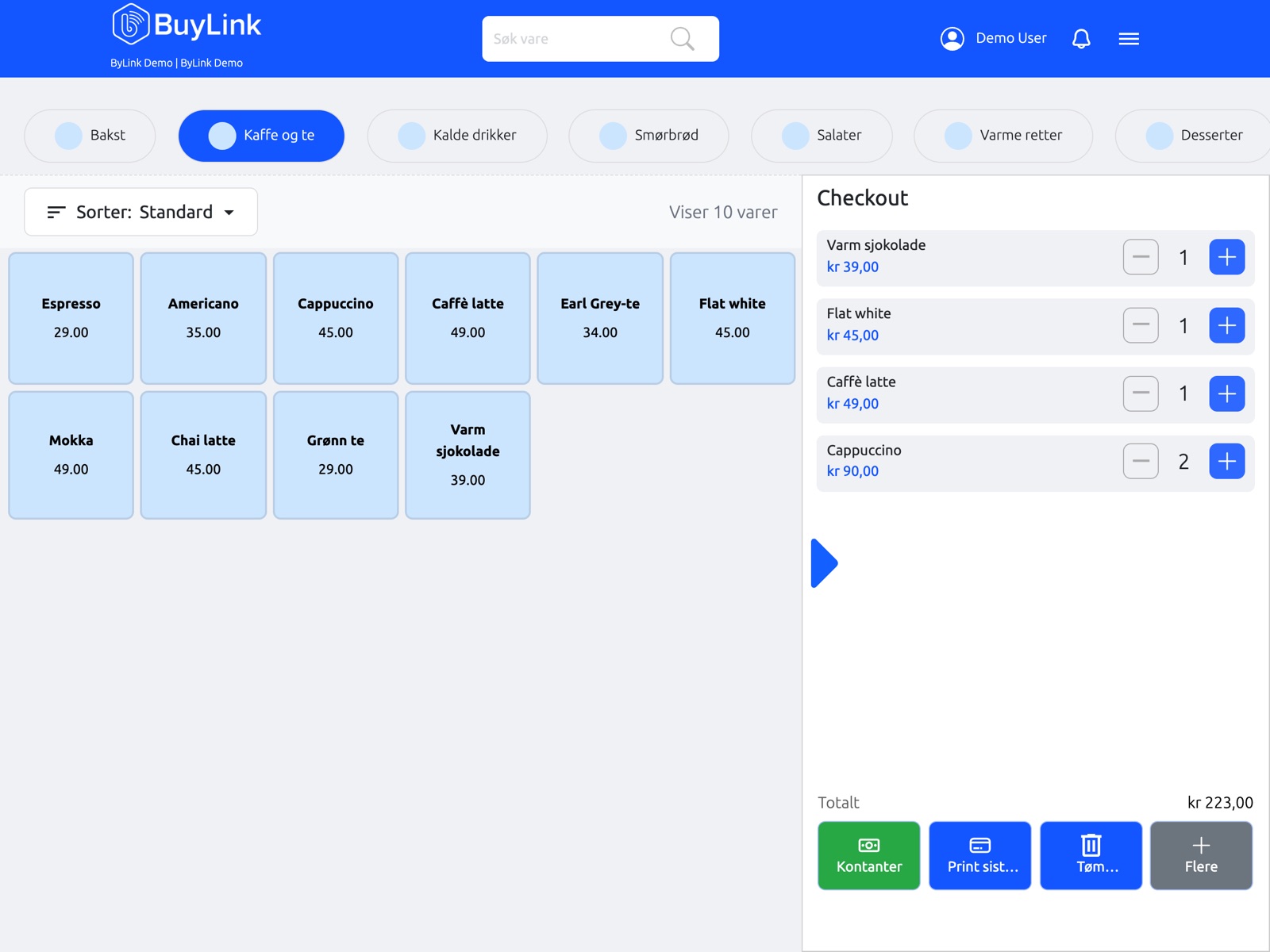
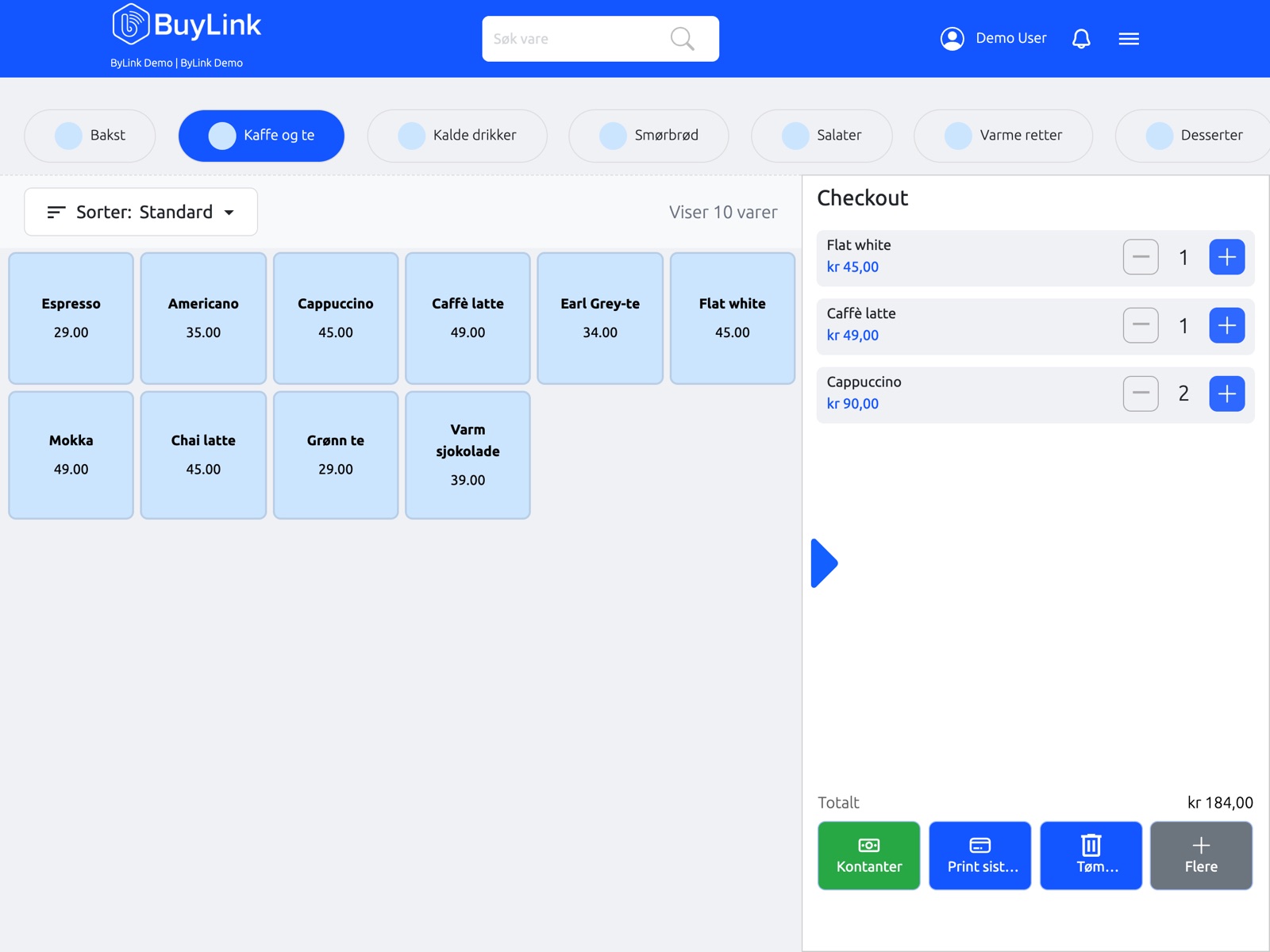
POS main sale screen on tablet (landscape): product grid + order
BuyLink POS on Verifone terminal: order screen
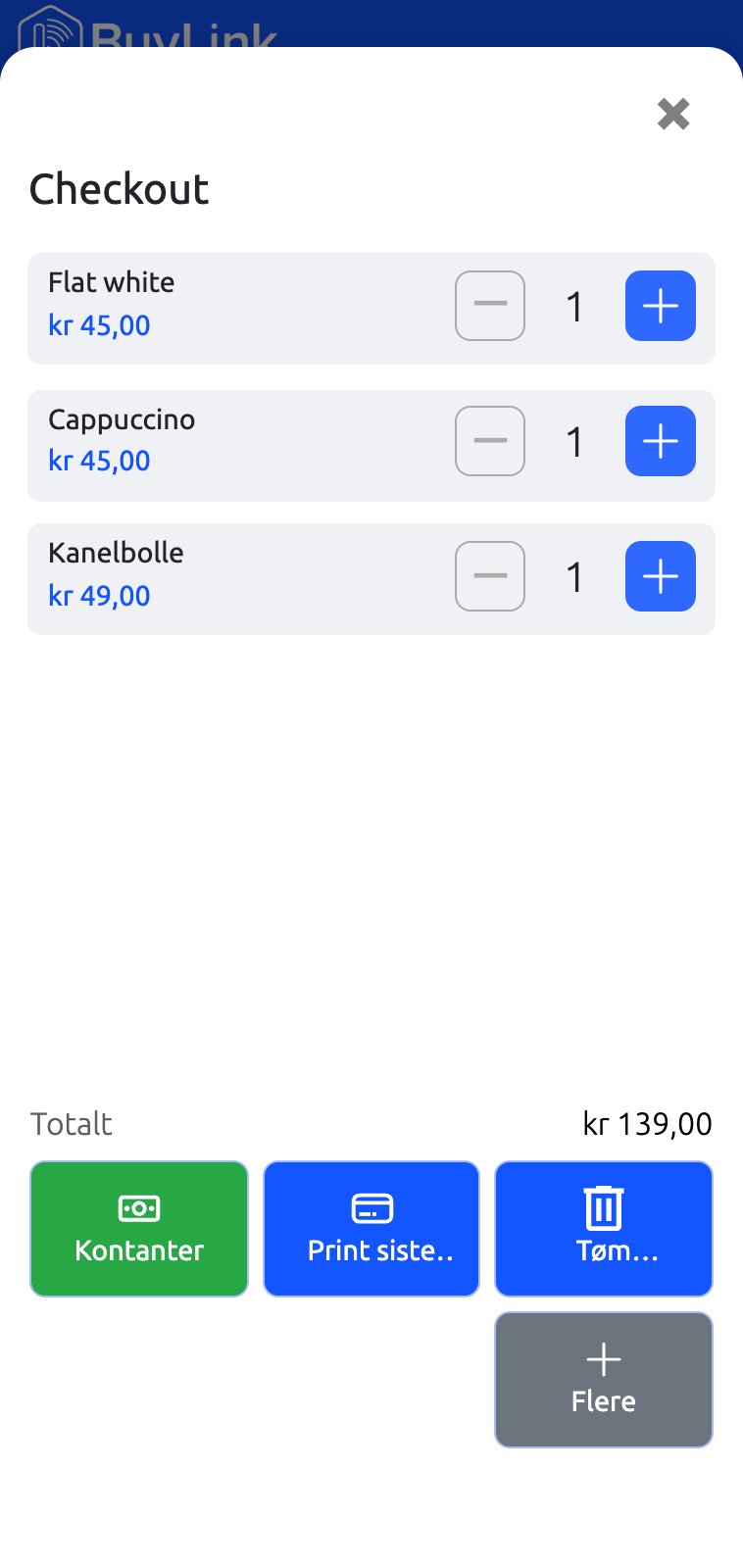
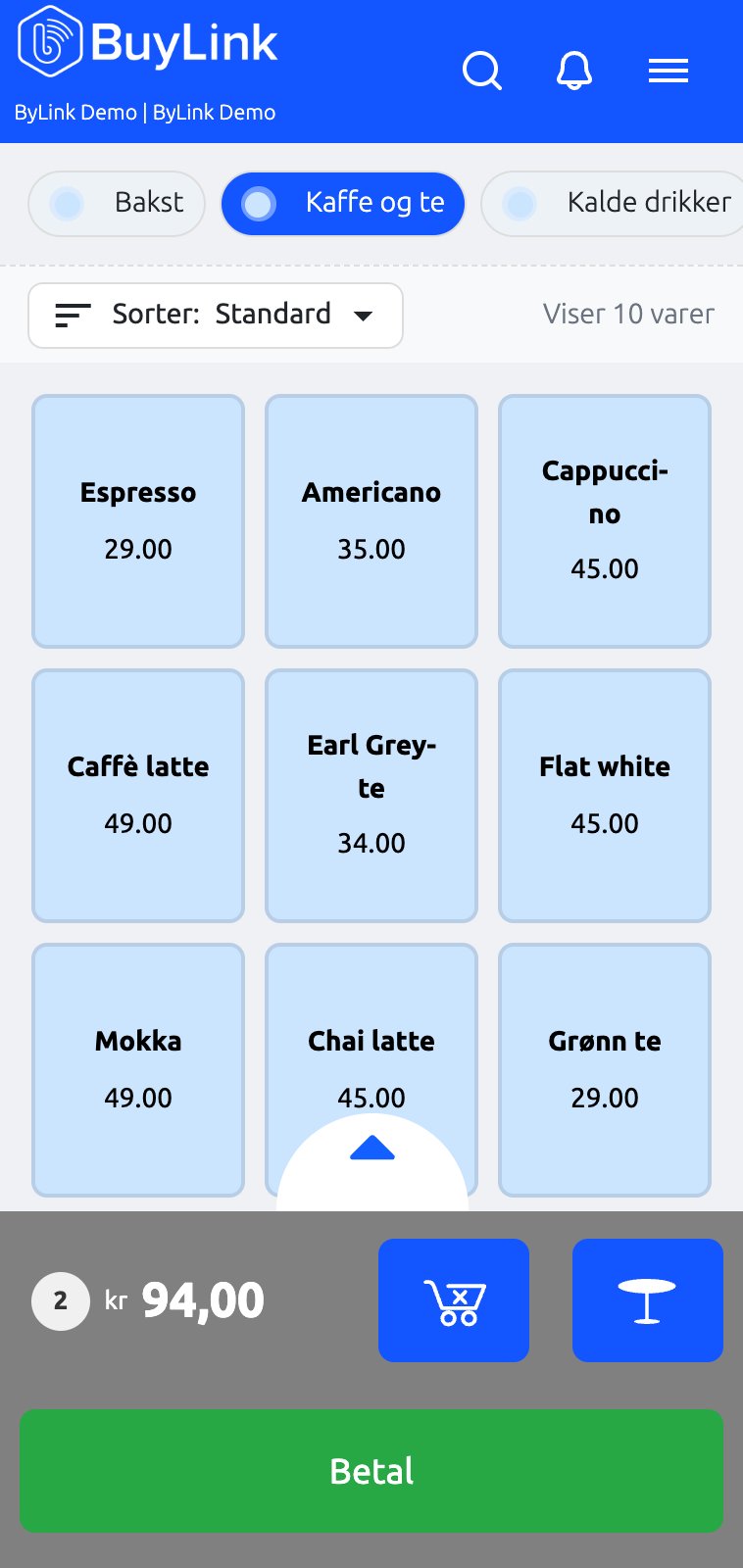
Mobile POS: order screen on phone (iOS or Android)
BuyLink POS on Nets terminal: product grid

One platform, many industries

The same core — with the features each industry needs.

Features

Everything you need, in one system

Explore what BuyLink does — from the first sale to daily closing and accounting.

Sales & payments

Point of sale (POS)

A fast, simple sales screen your staff learn in minutes — on a counter till, tablet, phone or directly in the terminal.

  • Product grid with categories and quick keys
  • Discounts, notes and receipts
  • The same setup across all devices
POS main sale screen: product grid + order panel (tablet, landscape)

Share orders & split payments

Share an order between several guests, or pay one single bill with several payment methods.
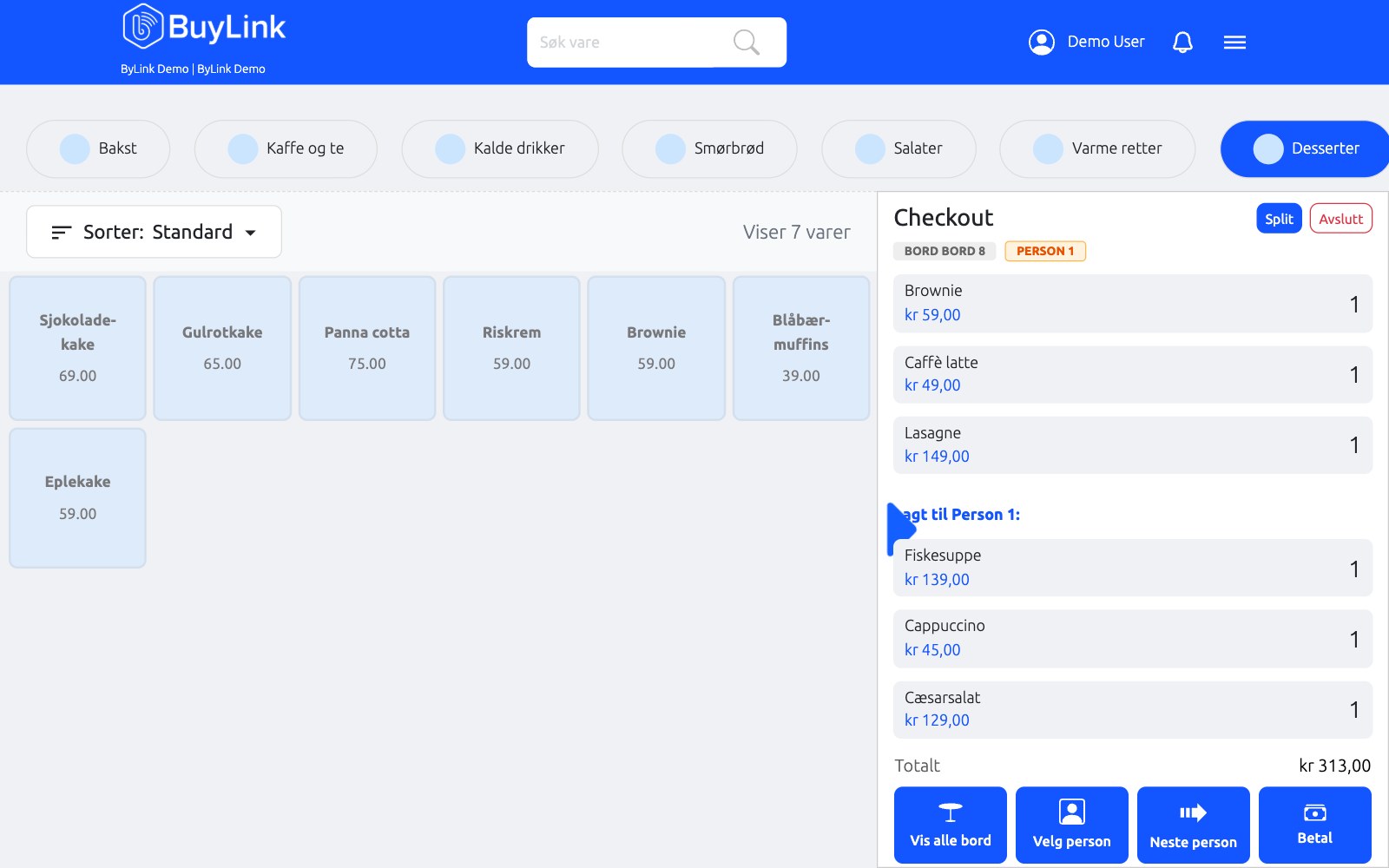
  • Share the order between guests at the table
  • Split the payment: card + cash + gift card + other methods
  • Everything stays in one order and one settlement
Split the table: assign items to each person and pay per person

Cash exchange

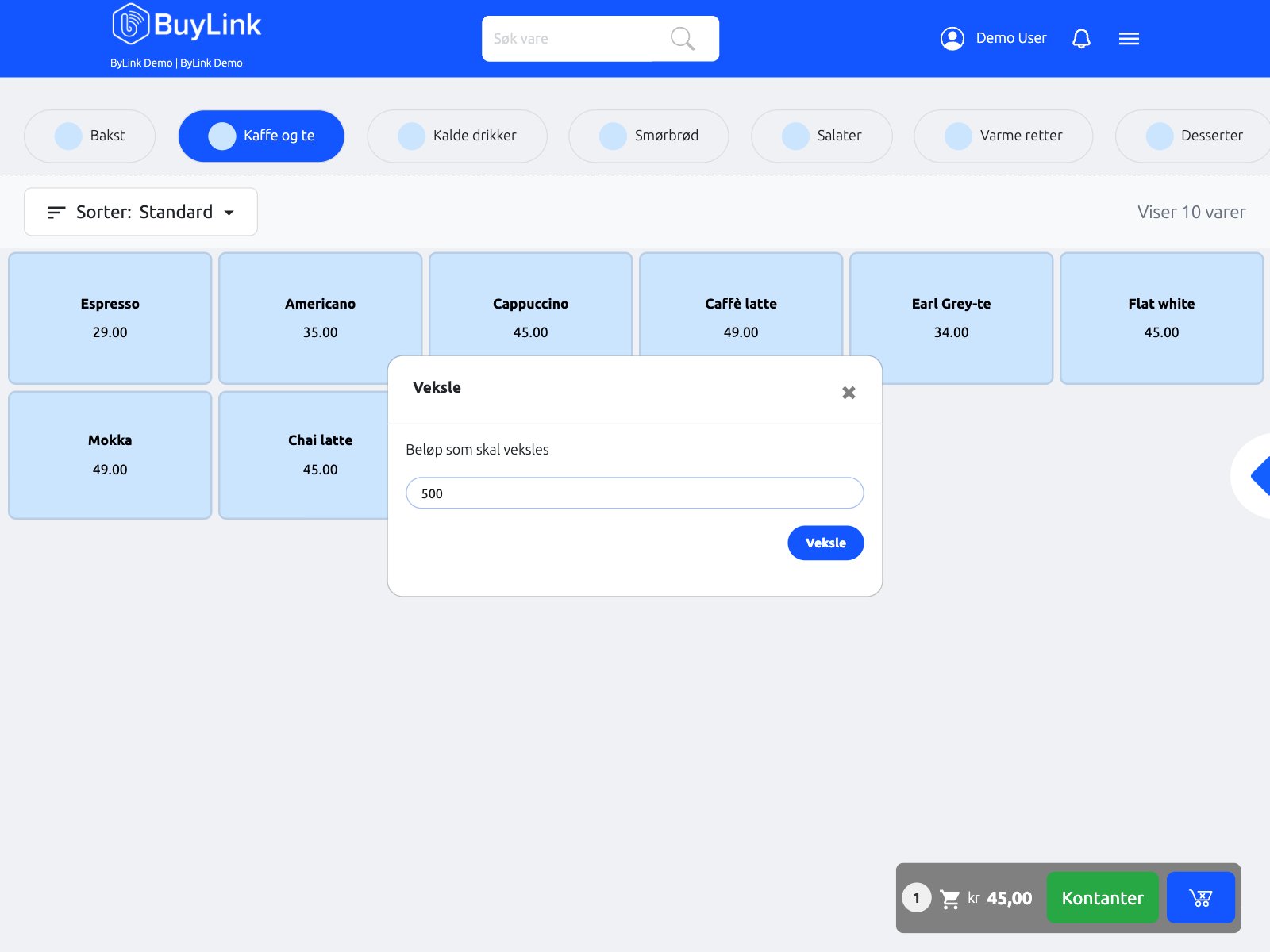
Exchange other payment methods for cash. If a customer pays 500 NOK via bank terminal, card or Vipps, they get 500 NOK back in cash.
  • Works with bank terminal, card and Vipps
  • Cash is paid out straight from the till
  • Simple for customers who need cash
Cash exchange dialog: paid by card/Vipps, cash returned

POS directly on the terminal

The BuyLink app runs right on the Android payment terminal from Nets and Verifone, with a full touchscreen. Sales and payment in one device.

  • Supports Nets and Verifone terminals
  • The full POS app on the terminal touchscreen
  • Fewer devices and faster payment
BuyLink POS app on the Android terminal (Nets / Verifone): product grid

Standalone payment mode

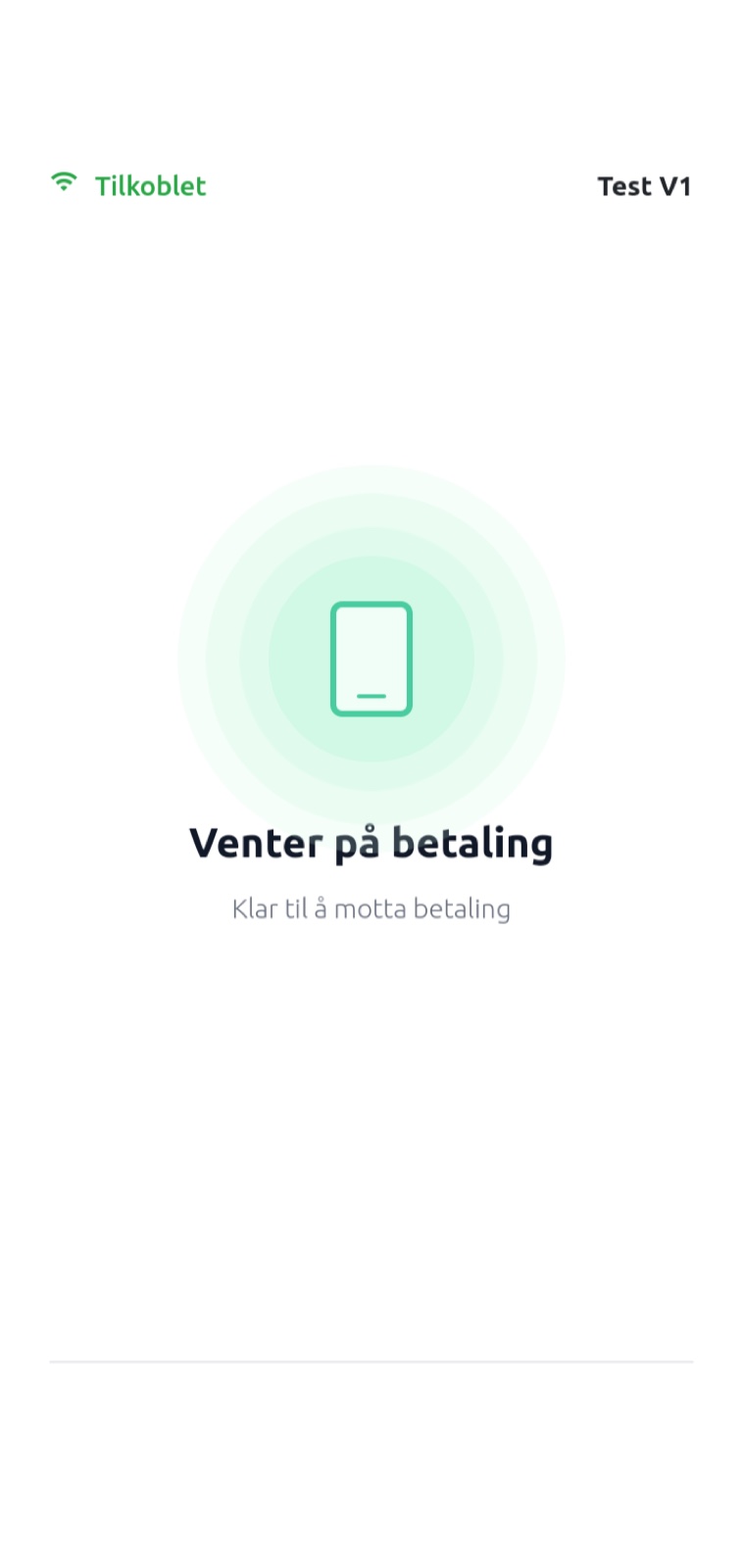
Set the terminal to standalone mode to only accept payments started from BuyLink on web or mobile (Android/iOS). The terminal waits for payment, ready to use.
  • Payments from BuyLink on web, Android and iOS
  • The terminal waits for payment, ready to use
  • Choose between POS on the terminal or payment-only
Terminal in standby mode: waiting for payment

Self-service

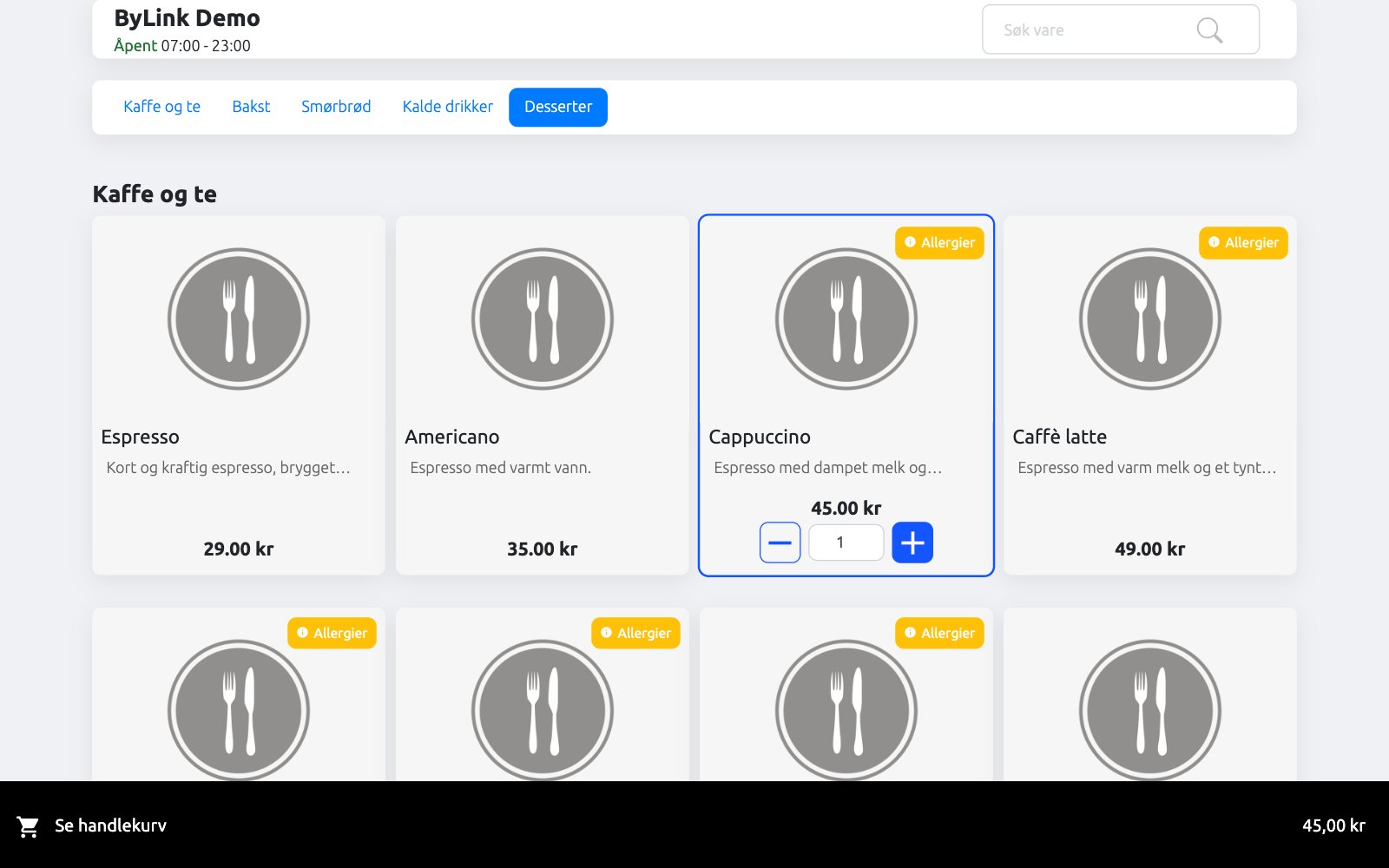
Let customers order for themselves. Shorter queues, and your staff get time for what creates the experience.
  • Self-service ordering
  • Less queueing at peak times
  • Same products and prices as at the till
Self-service ordering screen (kiosk / customer-facing)

Restaurant & table service

Table service

Built for waiters: open tabs per table, add orders during the meal and take payment right where the guest sits.

  • Open and manage tabs per table
  • Add orders during the meal
  • Mobile service with a handheld terminal
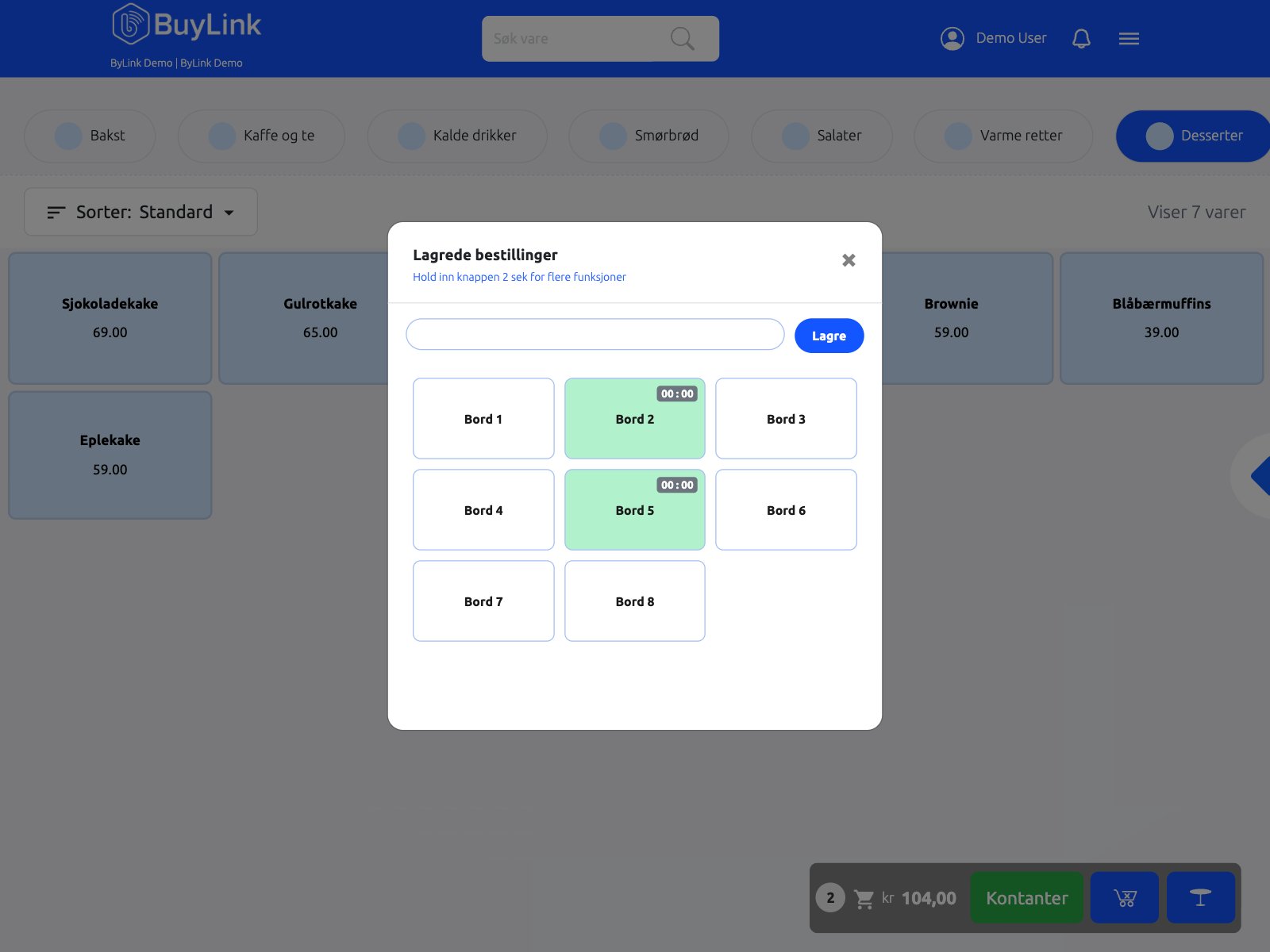
Table service: table plan with open tabs

QR ordering – restaurant & takeaway

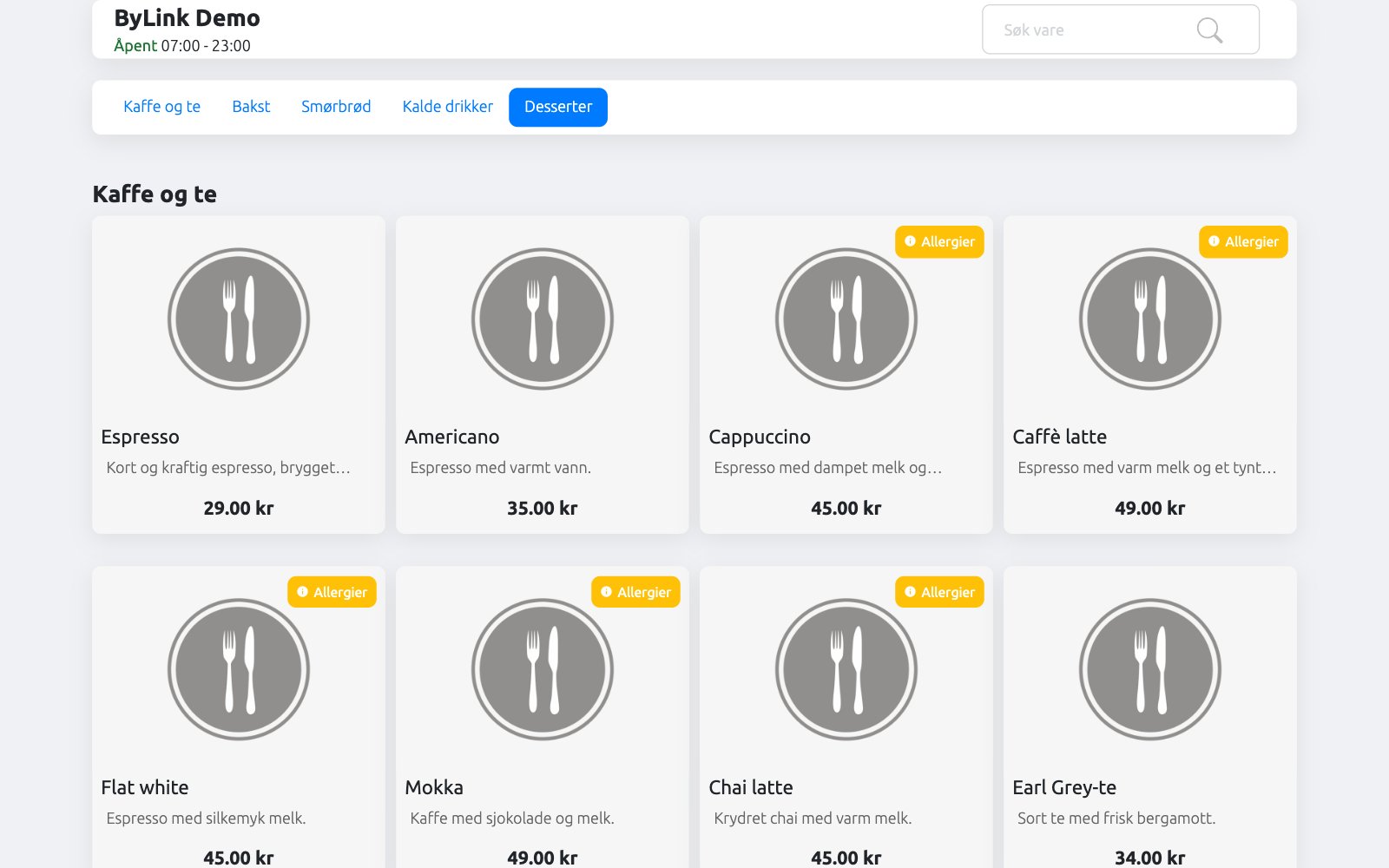
Guests scan a QR code and order from their own phone — at the table in the restaurant, or as takeaway.
  • QR code on the table for in-restaurant ordering
  • QR code for takeaway without queueing
  • Orders arrive straight in the POS
Guest QR menu and order screen (dine-in / takeaway)

Customers & campaigns

Customers & customer groups

A customer register with their own prices and discounts per customer group — for regulars, staff and businesses.
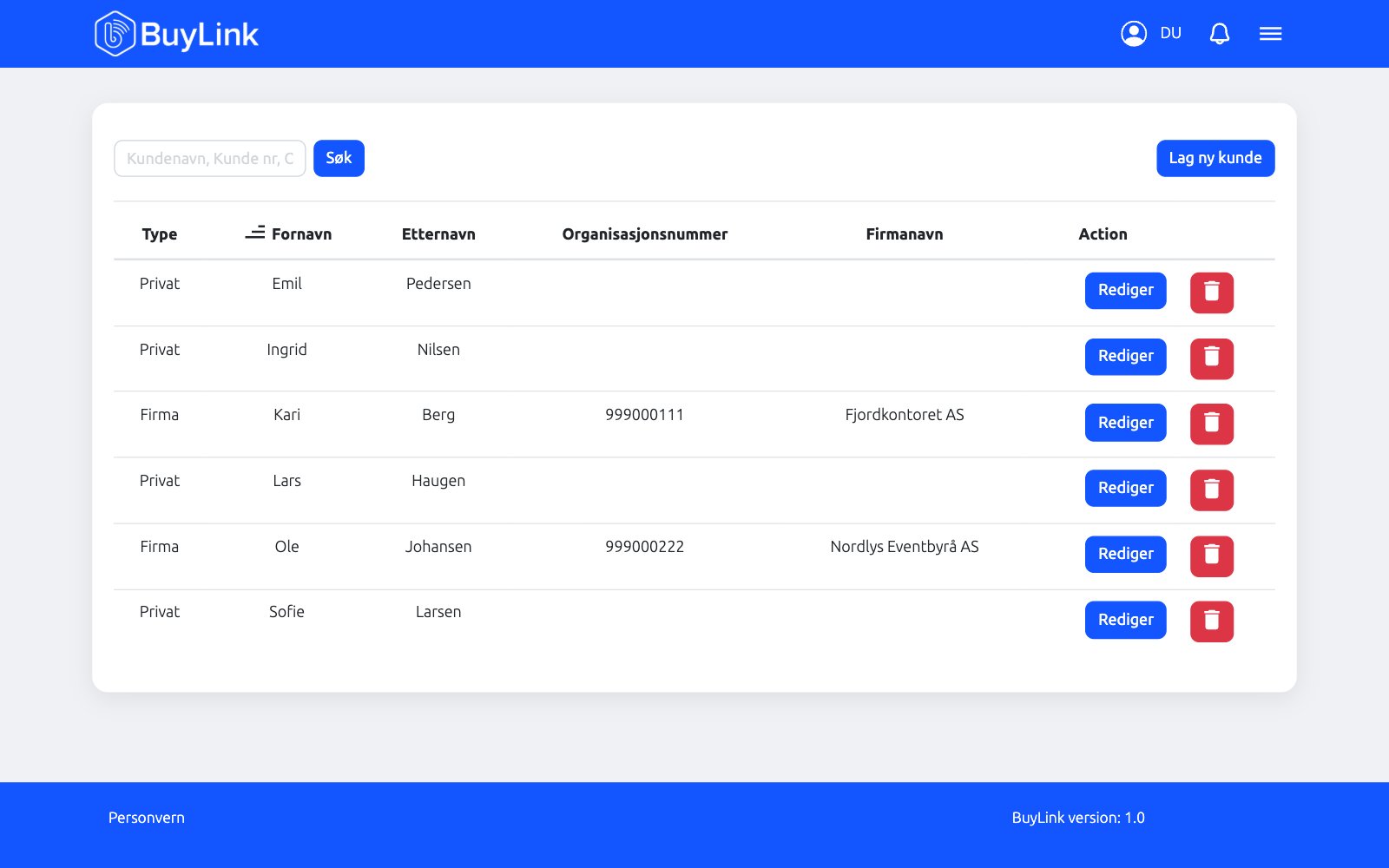
  • Customers identified at the till
  • Own prices and discounts per customer group
  • Credit sales to business customers
Customer register with customer groups and prices

Gift cards

Sell and redeem gift cards at the till, and use them as a payment method together with card and cash.
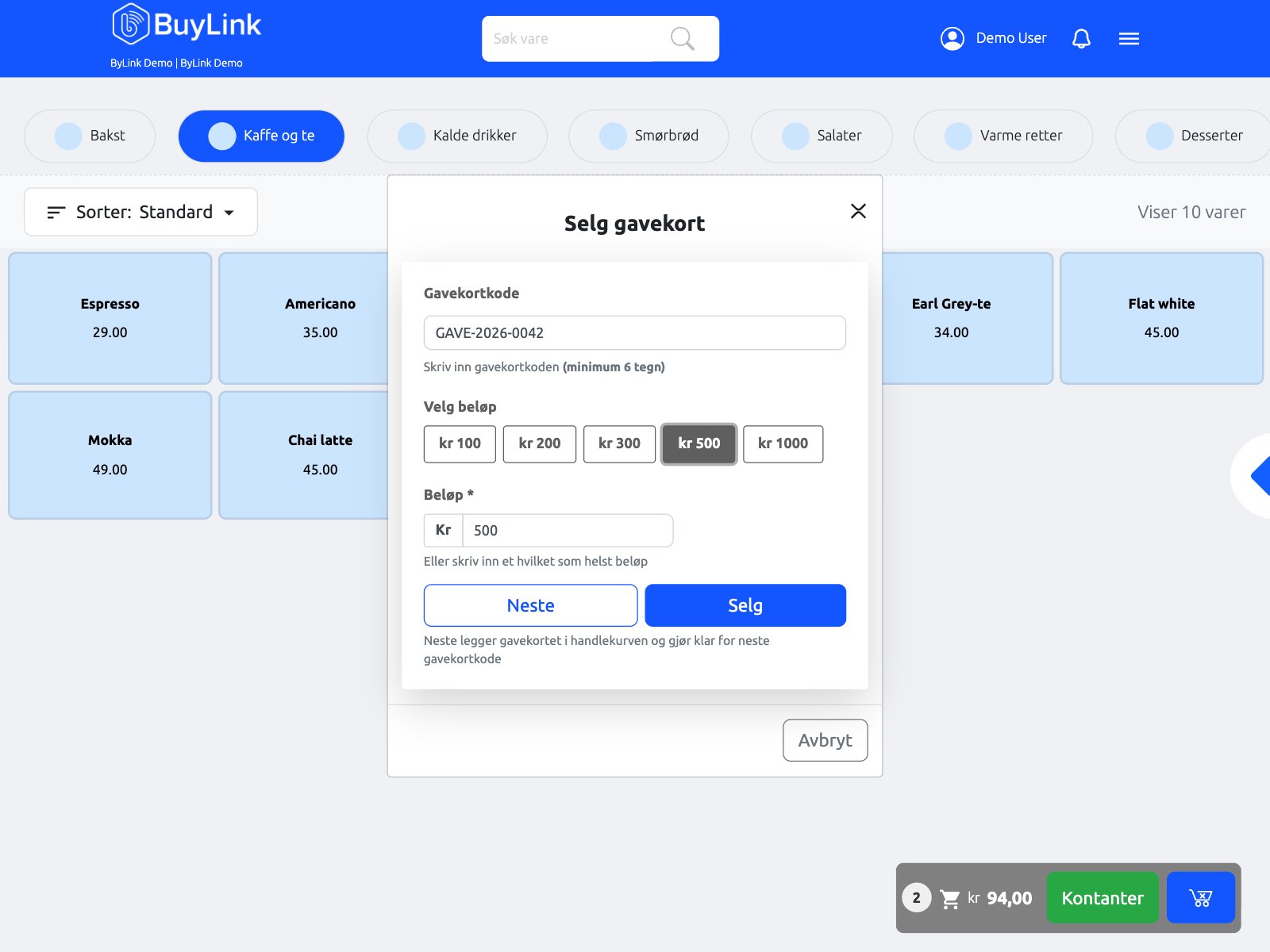
  • Sell and redeem at the till
  • Gift card as part of a split payment
  • Overview of issued gift cards
Gift card sale / redemption in the POS

Campaigns & promo codes

Create promo codes, campaign prices and offers on products and categories.
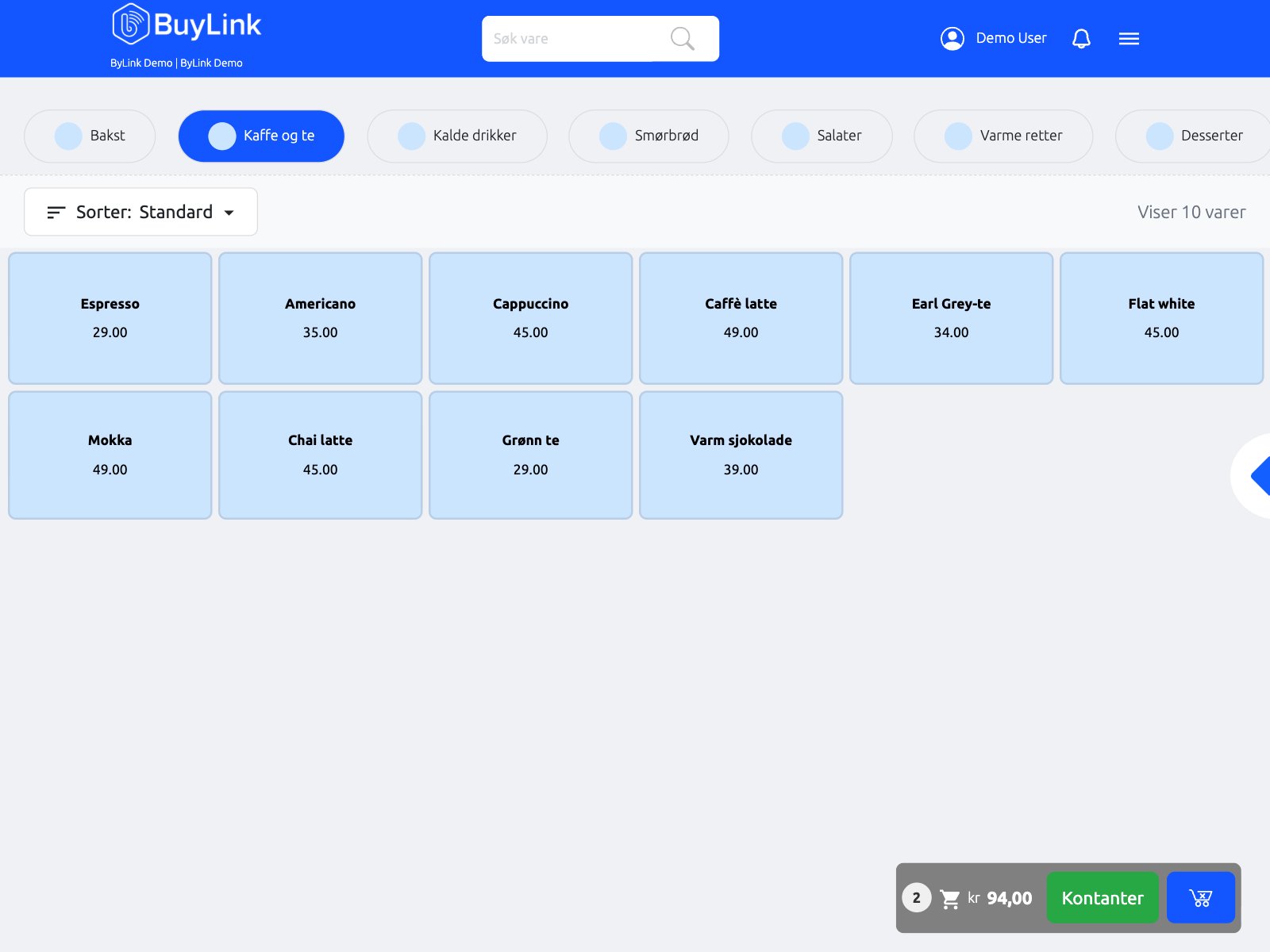
  • Promo codes and campaign prices
  • Offers on products and categories
  • Valid at the till and in QR ordering
Promo codes and campaign prices

Inventory

Product scanner

Scan barcodes for fast entry. At the till you use an external USB or Bluetooth scanner, and in the inventory module you can also use your phone or tablet camera.
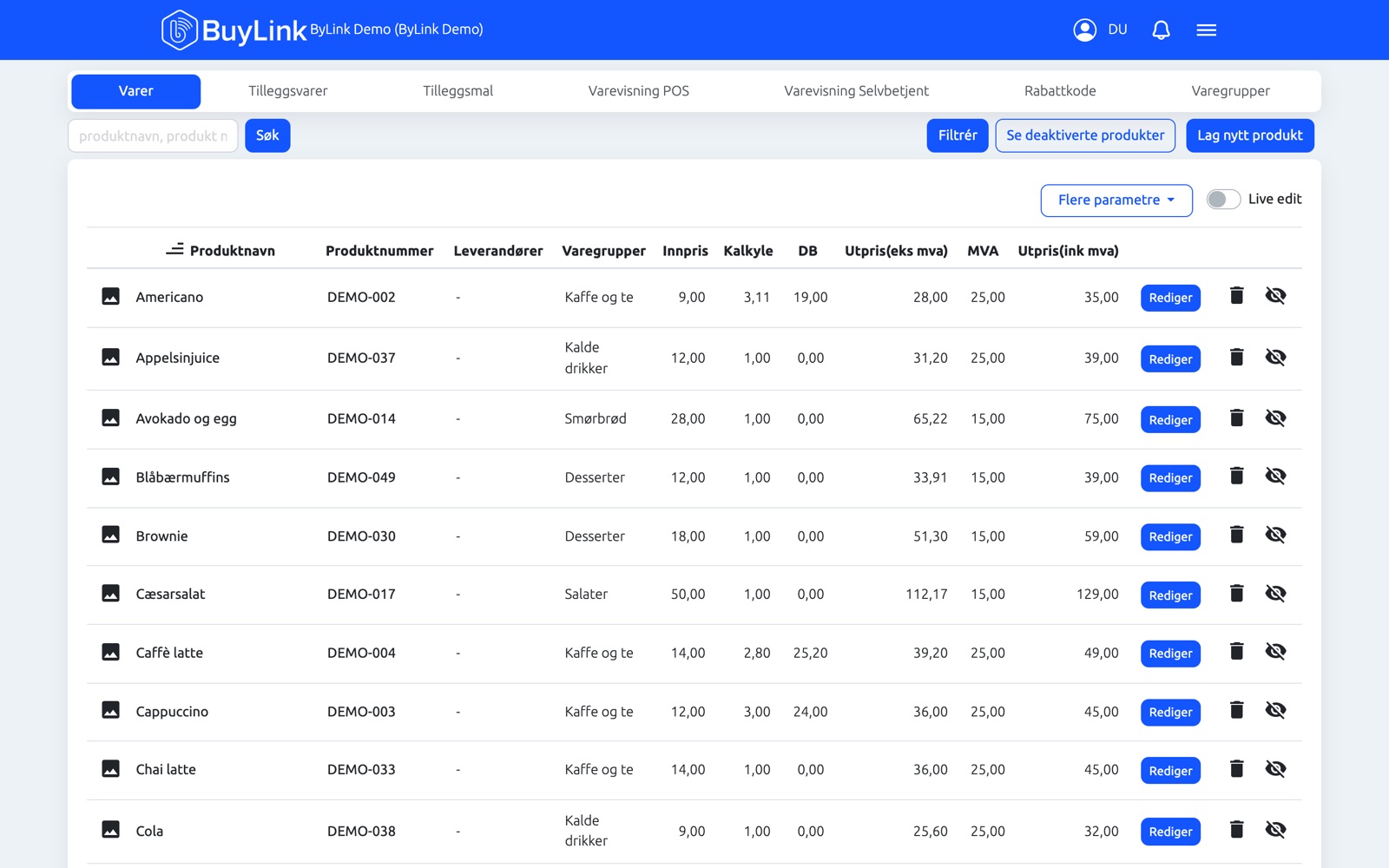
  • POS: external USB and Bluetooth scanner
  • Inventory: phone or tablet camera
  • Scan at goods receiving to book items into stock
Camera barcode scan in Inventory (phone) + external scanner at POS

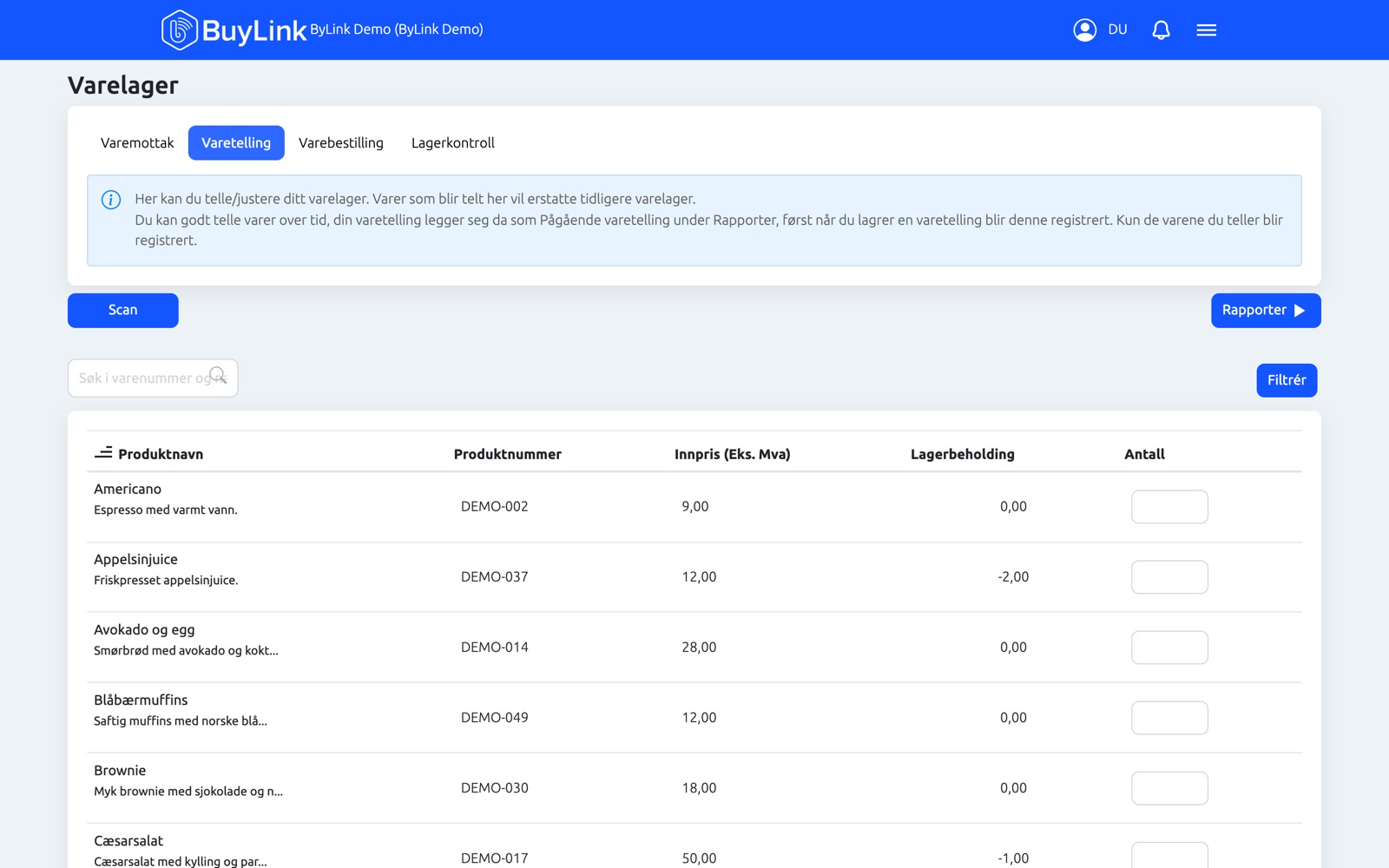
Inventory counting

Count your stock with a scanner or camera and compare it against the stock level in the system.
  • Count with a scanner or phone camera
  • See variance between counted and expected stock
  • Update stock levels after counting
Inventory counting screen: counted vs expected

Inventory management

Stay in control of stock, suppliers and purchasing, with alerts before items run out.

  • Suppliers and supplier orders
  • Low-stock alerts
  • Goods receiving with scanning
Inventory overview: stock levels, low-stock alerts, supplier orders

Reports & accounting

Reports & statistics

Full overview of sales and operations — from daily closing to accounting.

  • Daily Z-report / closing
  • Turnover by product, product group and payment method
  • VAT overview and export to Excel and PDF
  • SAF-T and accounting export
Reports: Z-report, sales by product / category / payment method

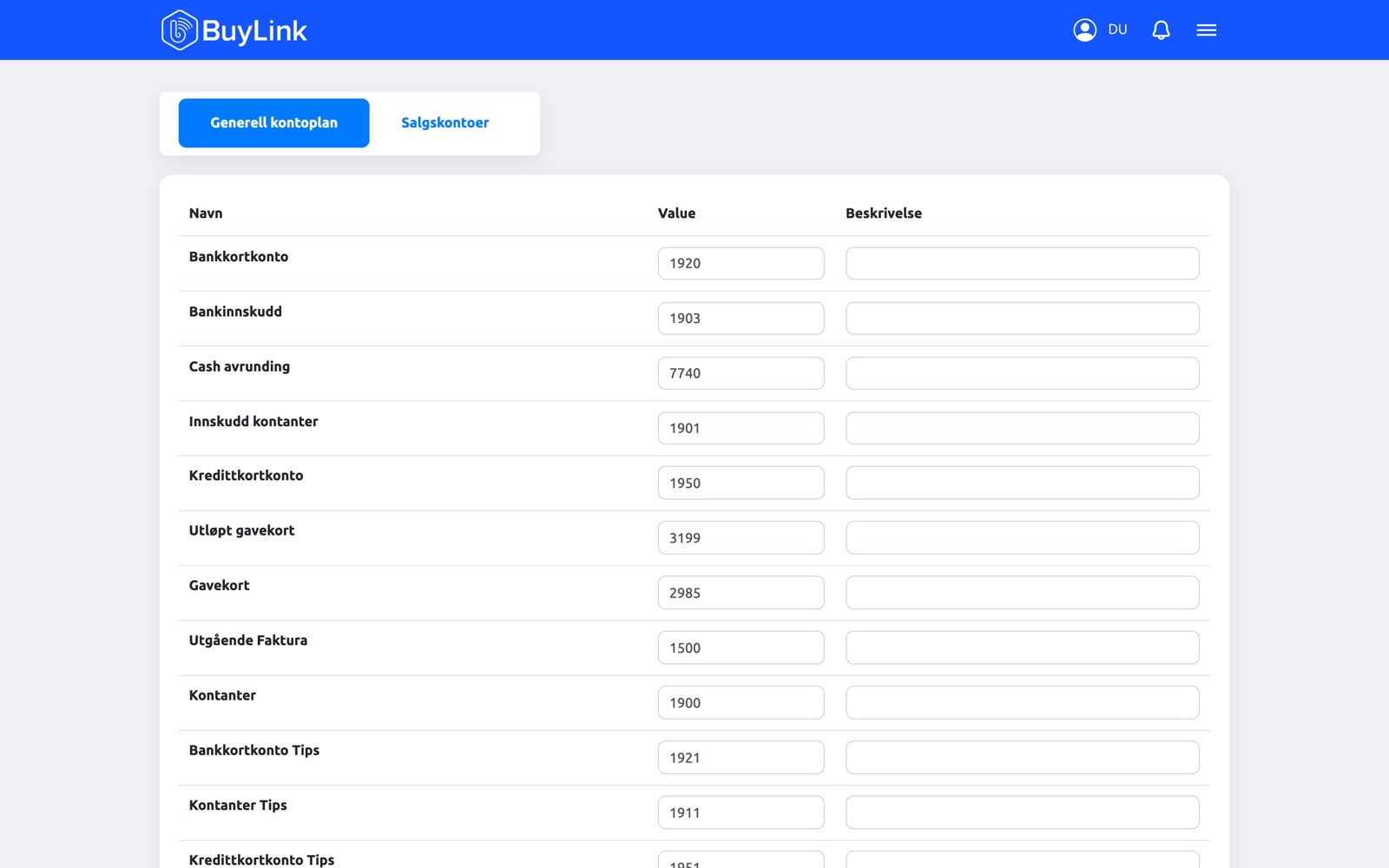
Accounting integrations

Connect BuyLink to PowerOffice or Tripletex and skip the manual double entry.
  • Integrations with PowerOffice and Tripletex
  • SAF-T and accounting export
  • Less manual work at month-end
Accounting integration settings (PowerOffice / Tripletex)
Terminals

POS directly on the payment terminal

No extra till hardware. The BuyLink app runs right on Nets and Verifone Android terminals, with a full touchscreen. You can also set the terminal to standalone mode and only accept payments from BuyLink on web or mobile (Android/iOS).

Nets Verifone Standalone mode
BuyLink POS app on terminal: product grid + order
Terminal running BuyLink POS
Terminal in standby mode: waiting for payment
Standalone mode
POS main sale screen on tablet (landscape): product grid + order
Tablet
Mobile POS: order screen on phone (iOS or Android)
Mobile
Platforms

Works on every platform

The same BuyLink across all your devices. Use the hardware you already have, or pick the right kit for your operation.

Windows

Counter till and back-office on PC.

Android

Tablets, phones and terminals.

iOS

iPhone and iPad — great for mobile sales.

Web

Admin and reports in the browser.

Reports & accounting

Reports & statistics

Full overview of sales and operations — from daily closing to accounting.

  • Daily Z-report / closing
  • Turnover by product, product group and payment method
  • VAT overview and export to Excel and PDF
  • SAF-T and accounting export

Connects to the systems you use

Reports dashboard: Z-report, sales by product / category / payment method

Frequently asked questions

Which platforms does BuyLink run on?

BuyLink runs on Windows, Android, iOS and the web.

Can the POS run directly on the payment terminal?

Yes. BuyLink is available as a POS directly on Nets and Verifone terminals, including handheld terminals.

Can customers split the bill and pay in several ways?

Yes. You can share an order between several guests and split the payment, for example card + cash + gift card + other methods.

What is cash exchange?

Customers can exchange other payment methods for cash. If a customer pays 500 NOK via bank terminal, card or Vipps, they receive 500 NOK back in cash.

How does product scanning work?

At the till you use an external USB or Bluetooth scanner. In the inventory module you can also use your phone or tablet camera, for example for goods receiving and stock counts.

Which reports do I get?

Daily Z-report/closing, turnover by product, product group and payment method, VAT overview, plus SAF-T and export to PowerOffice and Tripletex.

Can the terminal be used for payments only?

Yes. Set the terminal to standalone mode and it accepts payments started from BuyLink on web or mobile (Android/iOS). You can also run the BuyLink POS app directly on the terminal.

Ready to see BuyLink in action?

Book a demo and we’ll show you how BuyLink fits your business — restaurant, shop or events.